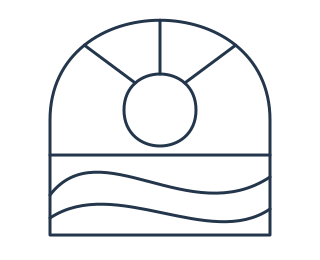
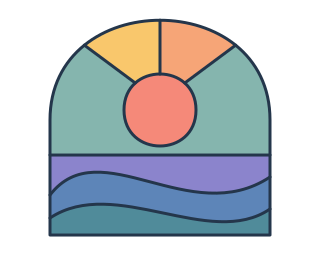
Fill enclosed areas in line art
An overlapping pair of rectangles makes three regions. A few curves can make a landscape. Vector Flood Fill finds those enclosed areas so you can color them without tracing a second set of outlines. Use it for line-art illustrations, diagram sections, stained-glass designs, or decorative lettering.
Start with the downloadable window above, or draw two overlapping rectangles with visible strokes and no fill. Select the boundaries, press Shift+F, and open the paint button in the top toolbar. Choose Solid and a color, then hover to preview and click to fill. Drag through several regions to paint them together.
Apply a continuous gradient across multiple regions
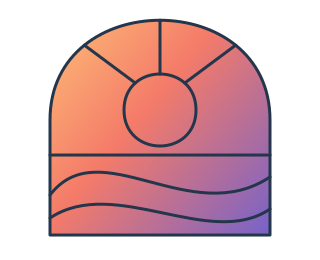
Keep all your boundary shapes selected and choose Linear gradient or Radial gradient in the bucket paint picker. Set the stops, then fill the regions you want. The gradient spans the full boundary selection instead of starting over inside each new path. The window above uses a gold, coral, and violet gradient.
Patterns also align across separate regions. Choose a preset, a library pattern, or an image tile. See SVG patterns for instructions on creating reusable tiles.
Edit fills without changing the outlines
Choose the fill paint in the bucket toolbar without changing the selected outlines. Auto placement puts a region fill behind unfilled linework, or above existing source fills when needed to make it visible. You can also choose Behind boundaries or Above boundaries explicitly.
Replace updates a matching region fill. Add on Top adds another Appearance fill layer for a translucent wash or patterned overlay. Alt-click samples an existing fill. Edit last fill selects the results so you can keep working with the ordinary path editing tools.
For a small break in the outline, enable Close gaps and set the maximum gap in document units. Hover to inspect the dashed bridge before filling. The bridge helps find the region; it does not change the original lines.
Create a region fill or recolor an object
Select boundaries when you want a new path in the space they enclose. With nothing selected, clicking an existing object changes its fill directly. In the paint picker, choosing a new color keeps the current paint type: choose Solid explicitly when you want a flat color instead of a pattern.
The resulting fills are ordinary SVG paths, and editing the original boundaries later does not automatically reshape them. If you want to merge the outlines themselves or cut away part of the geometry, use Shape Builder.