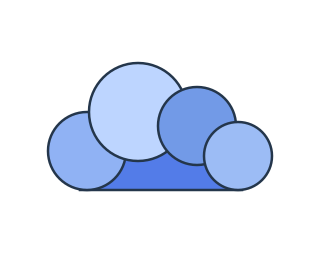

Merge circles and a rectangle into a cloud
Arrange four overlapping circles and a rectangle as shown above, or download the construction SVG. Select all five shapes and press Shift+S to activate Shape Builder.
Choose Add and drag through the regions that make up the cloud. Release to apply the gesture. Repeat over any remaining regions until the construction is one outline. The result takes the bottommost contributing shape's appearance, so put the color you want on that shape first.
Extract an overlap as a separate path
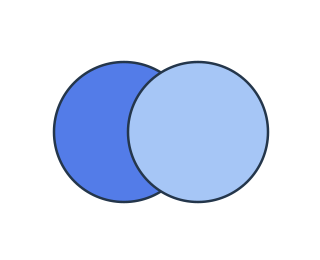
Two overlapping circles contain a lens-shaped middle. Click that region in Add mode and it becomes a separate editable path. Both crescents remain in the drawing. You can color the lens independently, use it as a leaf or petal, or continue combining regions.
This is useful when the shape you want already exists inside a construction. Work directly with the visible regions instead of redrawing the intersection. The results stay selected, ready for another gesture.
Remove regions from overlapping shapes
Switch to Remove, or hold Alt/Option when you start clicking or dragging. Every visited region is cut from each selected shape that covers it. Removing the shared lens from two circles leaves the two crescents shown above.
Use the same workflow to cut openings in badges, trim an icon, or shape the spaces between letters after outlining them. The Add and Remove buttons work on touch screens too. Undo restores a completed gesture, and Escape leaves the tool.
Shape Builder, Boolean operations, and Flood Fill
Shape Builder changes selected closed geometry region by region. Boolean operations apply Union, Subtract, Intersect, Exclude, or Divide to whole selected objects. Both leave ordinary paths you can refine in the SVG path editor.
If you want to color the spaces between outlines while preserving those outlines, use Vector Flood Fill. It also accepts enclosures formed by intersecting open curves, which Shape Builder skips.