Edit the path on the canvas
Select a path and press E. Its anchors appear as squares and its Bezier handles as circles on dashed lines. Drag an anchor to move it, drag a handle to bend the curve beside it, or drag a segment directly. Double-click a segment to add a node where you clicked. Select a node and press Delete to remove it, and the path closes the gap. Shift-click adds nodes to the selection so they move together.
The controls are the same on any path: one drawn with the Path tool, an imported icon, a vectorizer trace, a motion path, or text converted to outlines.
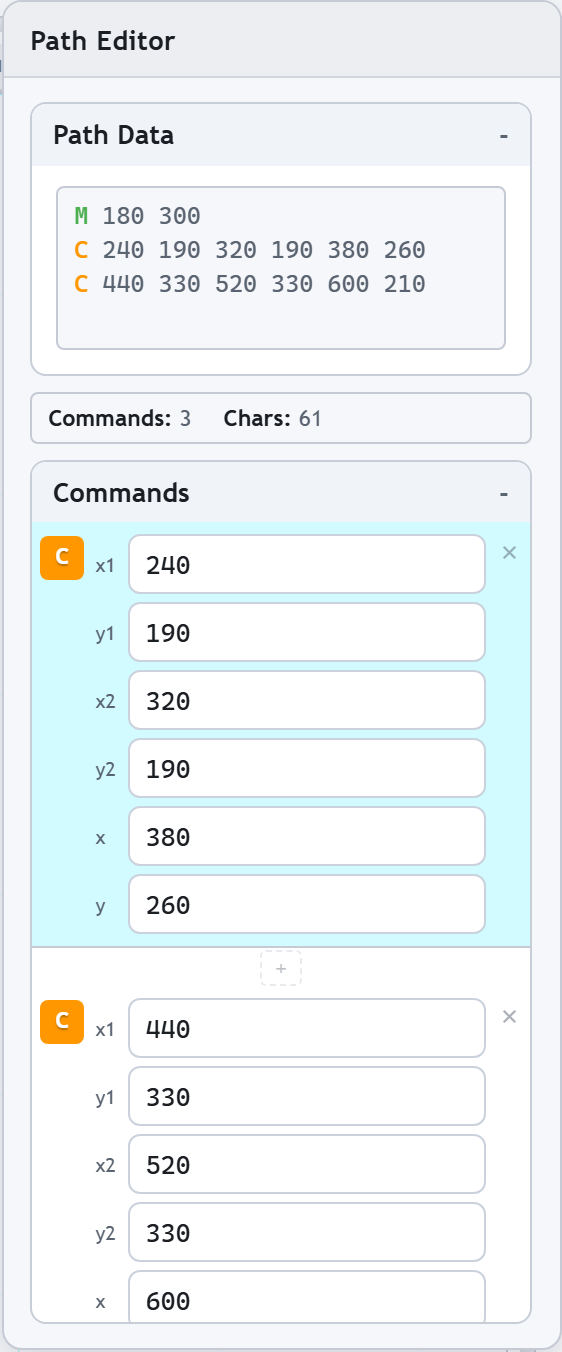
Edit the d attribute in the Path Editor panel
Open Window > Panels > Path Editor. The top box holds the path's d attribute in a code editor that colors each command letter by type; edit the text and the canvas follows. Under it, every command has a row: a badge that changes the command type, a numeric field per parameter, checkboxes for arc flags, and buttons to insert or delete commands. Click a row to select that node on the canvas, and click a node to highlight its row.
Change an L to a C and the segment keeps its endpoint while two handles appear on the canvas, ready to drag. Change a C back to an L and the handles are gone. Absolute and relative commands both work, and so does every command from M to Z.
Have path data already, from an icon set, a stylesheet or a Stack Overflow answer? Draw any path, select it, and paste your d attribute over the text in the panel: the canvas redraws it as you type, and a malformed command is flagged instead of silently dropped. A whole SVG file is simpler still: open it, or paste its markup onto the canvas with Ctrl+V.
Draw paths with Freehand, Pen, or line tools
The Path tool (B) places one anchor per click: click for a corner, drag for a curve. The Polyline tool (P) draws straight segments. The Freehand tool (F) follows the pointer and, when you release, thins the stroke to its smoothing setting and rounds it into a path you can edit node by node.
Clean up traced and freehand paths
Shape > Simplify Path (Ctrl+Alt+Shift+[) drops the nodes a path does not need, within a tolerance: 48 nodes became 11 on the trace above, at the default 0.1% of the path's size. The nodes it keeps stay where they were, so a pixel staircase stays stepped however few nodes are left.
Shape > Smooth Path (Ctrl+Alt+Shift+S) refits the path through its noise instead: 100 nodes became 7 smooth ones above. Real corners survive unless you switch that off, and open paths keep their endpoints. Simplify Options and Smooth Options in the edit toolbar set the tolerance.
Split, join, close, reverse
Shape > Split Path (Ctrl+Alt+P) turns a compound path into one shape per outline, and a hole stays with the shape around it. Shape > Join Paths (Ctrl+Alt+J) connects open paths into one. Close Path (Ctrl+Shift+J) adds the closing segment, Open Path (Ctrl+Shift+K) removes it, and Reverse Path Direction flips the start and end, which matters for markers, dashes, and anything animated along the path. In Edit mode, Join Nodes (Ctrl+J) welds two endpoints and Split Nodes (Ctrl+Shift+N) breaks a node in two.
Export the path data you see
Edits stay in plain SVG path syntax. Export writes the d attribute the panel shows, optimized with SVGO if you want it, and Edit > Copy as Code > SVG (Ctrl+Shift+C) puts the markup on the clipboard for a component or a stylesheet.