SVGSketch Feature

SVG Animation Editor - Create SMIL Animations Online

Create SVG animations visually with a timeline editor. Keyframe position, opacity, color, transforms, motion paths, and morphs, then export clean SMIL markup.

Open SVGSketch

Quick answer

SVGSketch is a visual SVG animation editor: add keyframes for transforms, opacity, color, stroke, type and path data on a timeline, preview in real time, and export self-contained SMIL that runs without JavaScript. Authoring is free; exporting an animated file is a Pro feature.

What the timeline writes into the file

ONE ROTATION TRACKanimateTransformattributeName="transform"type="rotate"values="0 68 50;360 68 50"calcMode="spline"keySplines="0.42 0 0.58 1"dur="3s" repeatCount="indefinite"
A track becomes SMIL This card is not a picture of an animation - it is the exported markup, running. The ease-in-out on the keyframes is what writes calcMode="spline" and its control points.
MOVE ALONG PATHIN EDIT MODE
A motion path is just a path The dot rides an <animateMotion> whose path is the curve drawn beneath it - the same shape, not a copy. Select the track and you get the anchors, Bezier handles and Path Editor panel you would get on any other path; the handles below are the editor’s own.
EASING, AS EXPORTEDLinearvalues onlyEase in outkeySplinesEase out back10 keyTimesStepsdiscrete
Easing is written into the file Each curve is plotted from the attributes the exporter wrote for that easing. Bezier easings become keySplines; one that overshoots cannot, so it is sampled into keyTimes; steps becomes calcMode="discrete".

Animate anything on a visual timeline

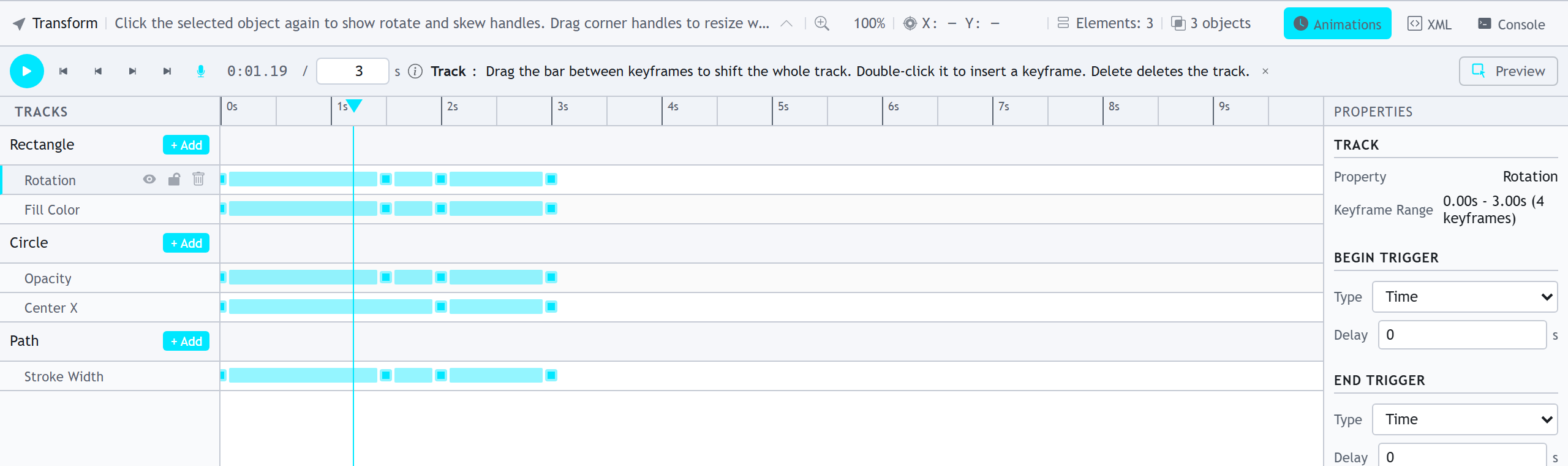
Position, rotation, skew, opacity, fill and stroke color, stroke width and dash offset, font size, weight, letter and word spacing, visibility, blend mode, and path data for morphing - each element and property gets its own track, so you can see exactly what happens and when.

Drag keyframes to adjust timing, and pick easing from thirty curves: linear, the ease family, the full Penner set in sine, quad, cubic, quart, quint, expo, circ and back, plus a custom cubic-bezier editor, CSS linear() functions and stepped easing. Duration, delay, repeat count and cycle behavior are per track.

Use timeline tracks instead of hand-written SMIL

A timeline keeps the animation model readable: one duration, one loop setting, and one track per animated property. You can build a bouncing icon, a loading mark, or a logo reveal without editing animate and animateTransform tags by hand.

When you export, SVGSketch writes the native SVG animation elements for you: animate, animateTransform, animateMotion with an mpath reference where the motion follows another shape, set for discrete states, and discard. Your easing choice is lowered with it - a bezier easing becomes calcMode="spline" and its keySplines control points, while a curve that overshoots, or a stepped one, is expanded into keyTimes because keySplines cannot express it.

Create motion paths and shape morphs

Motion path animation moves an element along a drawn path, so badges, arrows, dots, and labels can follow real vector geometry. Shape morphing animates compatible path data between states for logo transitions, abstract loaders, and interactive illustrations.

Because the animation stays in SVG, the result remains inspectable, styleable, and portable across static sites, documentation, design systems, and component libraries.

A motion path is a path, with all the path tools

This is the part most timeline editors get wrong: the curve an element travels along is not a special object with its own reduced set of controls. Select the motion path and you are editing a path - the same anchor nodes, the same Bezier handles, the same drag-to-reshape behavior you get on anything you drew with the Path tool.

The Path Editor panel targets it too. While motion-path editing is active the panel switches to that path, so you get the command-by-command d table, per-command type conversion, arc flags and per-row insert and delete - on the trajectory, not just on artwork. Anything you can do to a path, you can do to a motion path.

A motion path can also be a shape the document already contains. Use "Pick shape" to bind the track to an existing path, and the animation follows that shape as you edit it; "Push" writes divergent edits back into the linked shape so other animations pick them up, and "Revert" discards them. Motion-only hides the shape itself and keeps just its geometry. The Library panel collects them in a Paths tab.

Morph a symbol into its own variant

The timeline can also animate an instance of a symbol from one variant to another. The export diffs the two variant trees and writes real animations for what differs - position, size, rotation, fill and stroke, path data, gradient stops - and cross-fades what cannot be interpolated, such as a polygon changing its side count. See the symbols page for how variant axes work.

Preview before you export

Play, pause, and scrub the timeline to preview animations in real time on the canvas, and toggle interactive preview (Ctrl+Enter) to exercise event-triggered tracks the way a viewer will.

Use the preview pass to catch timing problems before the SVG leaves the editor: easing that feels too abrupt, loops that snap back, motion paths that overshoot, or morphs whose path topology needs cleanup. Morphs get a specific warning in the panel when the topology will not interpolate - a differing vertex count, or a path command structure that differs from an adjacent keyframe, which per SVG 2 makes the animation snap discretely instead of morphing.

Where CSS animation fits

The timeline writes SMIL. That is deliberate: SMIL runs in a standalone .svg file, inside an <img>, and as an inline fragment, with no stylesheet and no script needed.

CSS animation is still first class in the other direction. Import an SVG whose animation is written as @keyframes and it plays on the same timeline, and it is re-exported as CSS rather than converted - the file you get back is still a CSS-animated SVG. You can also author @keyframes yourself in the Variables panel and apply one to the selection, which maps transform, opacity, fill, stroke, stroke-width and stroke-dashoffset onto timeline tracks. And when a component variant transition is what you are exporting, the SVG export options let you target SMIL, CSS animations, or the Web Animations API.

Why SMIL animation

SMIL is the native animation language of SVG. Animations are declarative attributes rather than code, so they need no runtime or framework, add bytes rather than kilobytes, work in modern browsers, and stay in the DOM where they remain accessible and indexable.

Sound and video on the same timeline

The timeline is not limited to vector properties. Audio and video clips get their own lanes, with trim handles, split at the playhead, volume, mute, loop, fade in and out, and a playback rate. That is what makes the video and animated-image exports a single operation rather than a separate assembly step - and, for an SVG that embeds media, an optional inline script keeps playback synced to the document timeline.

FAQ

Can SVGSketch export animated SVG without JavaScript?

Yes. Animations export as self-contained SMIL markup that runs in the browser without any JavaScript runtime.

What properties can I animate?

Position, rotation, skew, opacity (whole-element, fill and stroke separately), fill and stroke color, stroke width and dash offset, font size, weight, letter and word spacing, visibility, blend mode, path data for morphing, polyline points, and motion along a path. Groups additionally get translate and scale tracks.

Is SVG animation a Pro feature?

Building the animation is not - the timeline, keyframes, easing, motion paths and preview are all available on the free plan. Writing an animated file out is: "Include animations (SMIL)" in the SVG export options is Pro, as are GIF, APNG, animated WebP and every video format.

Can I export an animation as a GIF?

Yes. SVGSketch Pro can export animated SVGs as frame-by-frame GIF for places that do not support SVG animation, along with APNG, animated WebP and video.

Can I animate an SVG along a path?

Yes. Draw or pick a path, bind the element to that motion path, preview the timing, and export native animateMotion markup - with an mpath reference to the shape when the motion is meant to track it, so editing the curve later updates the animation.

Open your SVG in SVGSketch

Start with a blank canvas, import an SVG, or use the editor as a conversion and cleanup step.

Open SVGSketch