Trace pixels into editable vector paths
A raster image stores pixels. SVGSketch vectorization traces those pixels into SVG geometry so logos, icons, scanned marks, stickers, diagrams, and flat illustrations can be recolored, simplified, grouped, and exported as clean SVG.
The result is different from exporting a PNG. A vectorized image becomes real paths in the editor - the original bitmap is replaced by the trace - so you can edit anchors, tune colors, and ship scalable artwork.
Before and after vectorization
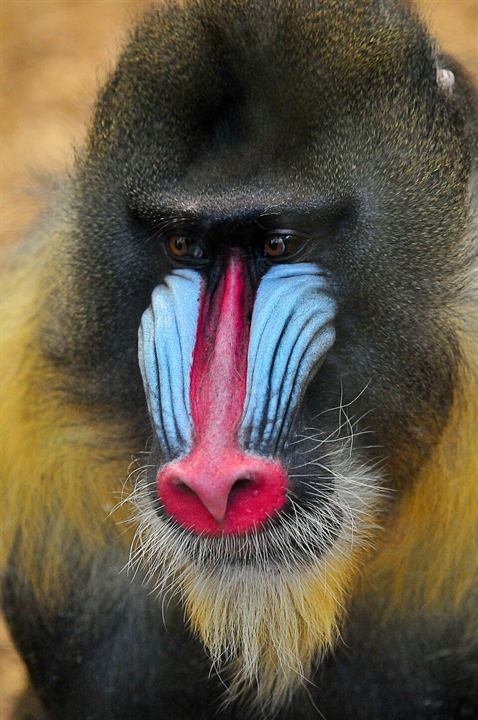 Source JPEG
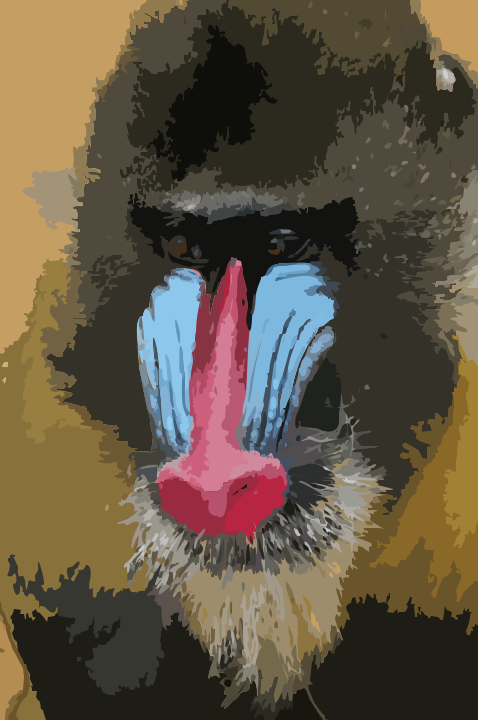 Generated SVG paths
478x720 px - 736 paths - 229.6 KB SVG - Smooth Curves - 128 colors
Choose color or monochrome vectorization
Use color tracing for logos, badges, product artwork, and illustrations where separate fills matter. Limit the palette when the trace creates too many tiny regions or when you need a smaller file.
Use monochrome tracing for black logos, handwriting, line art, stamps, silhouettes, and high-contrast scans. Adjust the threshold until the important foreground remains and background noise drops out.
Tune quality without bloating the SVG
Start with a balanced quality preset, then move up only when the preview loses important shape detail. Higher quality keeps more edges but also creates more paths and anchors, which makes the SVG harder to edit.
Output style matters too: smooth curves fit logos and illustrations, straight lines fit diagrams and hard-edged artwork, and pixel-exact tracing preserves blocky source images such as pixel art.
Clean up the trace before export
Vectorizer output often benefits from a cleanup pass. Raise the Filter Speckle setting for noisy scans, lower the color limit for busy images, and simplify dense paths after conversion. The traced paths replace the original image in one undoable step.
After conversion, use the Edit tool and Appearance panel to correct anchors, snap colors to brand values, merge fragments, and export optimized SVG.
Private browser-side conversion
Vectorization runs locally in the browser, so imported image files are not uploaded just to create a trace. That makes the workflow practical for client logos, unreleased product artwork, and internal diagrams.