What the optimizer changes
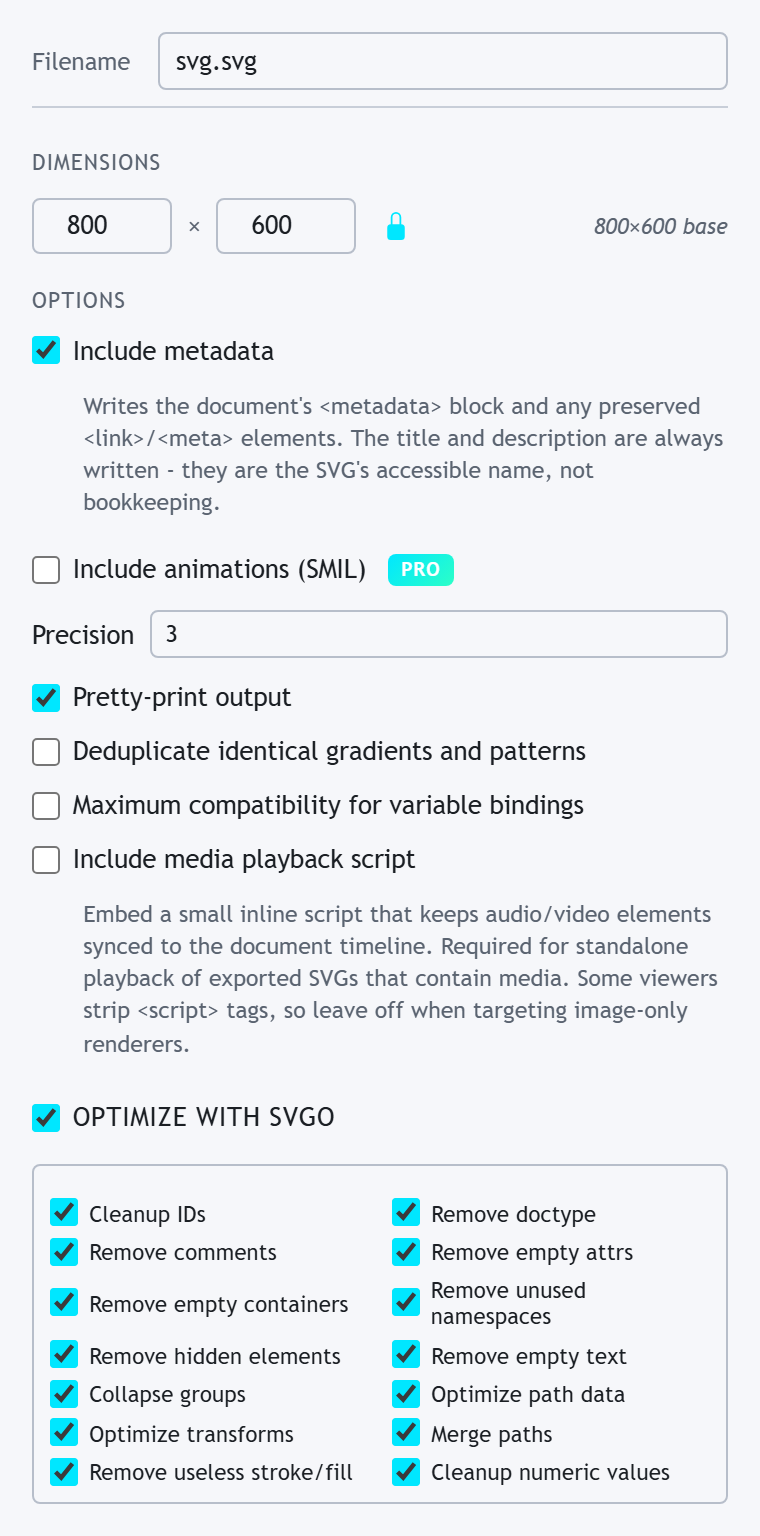
SVGO runs on the bytes leaving the editor, never on the document you keep editing, so you can re-export at other settings any time. With "Optimize with SVGO" on, the SVG settings show fourteen plugin toggles, all on by default: ids cleaned up; the doctype, comments, empty attributes, empty containers, unused namespace declarations, hidden elements and empty text removed; groups collapsed; path data shortened; transforms optimized; paths merged; useless strokes and fills removed; and numbers cleaned up. A path whose corners were shaped in SVGSketch keeps the corner construction data "Include metadata" writes, and SVGO only re-spells its path data, leaving every point where it was, so the corners are still editable when the file is reopened in SVGSketch.
Precision rounds every coordinate to the decimals you set, which is where most of the saving in a drawing-tool export lives: "M127.87349832 482.10283745" becomes "M127.87 482.1". "Deduplicate identical gradients and patterns" collapses paint definitions a source tool wrote once per shape.
Disable indentation to reduce file size
"Pretty-print output" is on by default because indented markup is the right thing to read and commit. It is the wrong thing for a file that only needs to be small: clearing it takes the median saving from 19% to 26% on the same files.
Numbers from real files
The two cards above are measured, not illustrated. Running the editor's own SVGO configuration over 115 real-world SVGs, the corpus SVGSketch uses for import regression testing, the median file lost 19%; a quarter lost 8% or less and a quarter lost 34% or more. 7 files grew: they arrived minified, and pretty-printing them again costs more than the optimizer saves.
Files from drawing applications have the most to lose. Across the 16 Illustrator, Inkscape and Sketch files in the same corpus the median saving was 36% and the best 87%.
Reduce path complexity
SVGO rewrites how geometry is spelled, and it drops a point only where the path draws the same without it, such as a node partway along a straight horizontal or vertical run. A path from the vectorizer or a freehand stroke may carry far more nodes than its silhouette needs. Select it and run Shape > Simplify Path (Ctrl+Alt+Shift+[), which drops nodes within a tolerance you set, or Shape > Smooth Path (Ctrl+Alt+Shift+S) to refit a stair-stepped trace. Delete unused definitions in the Elements panel, and ungroup single-child wrappers with Object > Ungroup (Ctrl+Shift+G).
Check the result
Open the exported file next to the original in a browser and compare. The plugins change how the markup is written, not what it draws, and a precision of two or three decimals is finer than a screen shows, so the two should match; if a filter or a gradient looks different, turn that plugin off and export again. The Export panel reports no before-and-after size, so compare the files in your file manager or shell.